_nithish
December 11, 2024, 5:36am
1
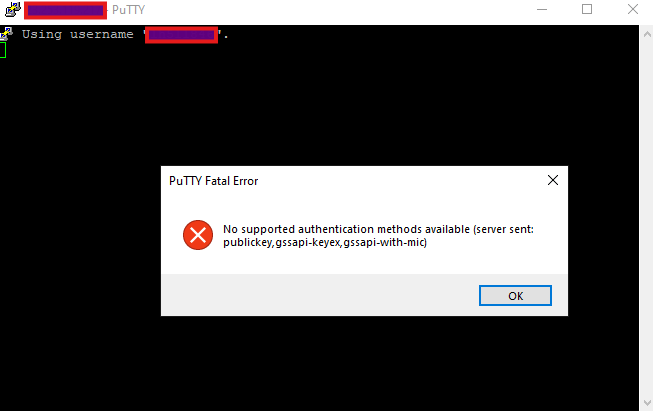
Hi Forum,Start process activity it is showing some error popup which i mentioned below.-ssh username@ip
Kindly share me the solution to resolve the issue,
Thanks in advance
Shakib
December 11, 2024, 5:45am
2
Check if Password Authentication is Enabled
Ask the Server Admin : Confirm whether password authentication is allowed on the server. If it is disabled, request the admin to enable it temporarily:
Edit /etc/ssh/sshd_config on the server:
text
Copy code
PasswordAuthentication yes
bash
Copy code
sudo service ssh restart
Configure PuTTY for Password Authentication
Open PuTTY.
Enter the server’s IP address/hostname and username .
Under Connection > Data , fill in the Auto-login username field with your username.
Save the session for reuse.
Automate with UiPath
Use the Start Process activity:
File Name : Path to putty.exe.Arguments : -load saved_session_name.
If a password prompt appears:
Use Type Into activity to input the password.
Use Send Hotkey to press Enter.
If the server requires key-based authentication:
Generate a Key (e.g., using PuTTYgen).Add the Public Key to the Server (~/.ssh/authorized_keys).Configure the saved session in PuTTY:
Load the private key in Connection > SSH > Auth .
Save the session for easy reuse.
Instead of automating PuTTY:
Install the UiPath.SSH.Net Activities
Use the following activities:
SSH Connect: Provide the server IP, username, and password (or private key).SSH Execute Command: Run commands on the server directly.SSH Disconnect: Close the session.
This avoids dealing with PuTTY entirely, simplifying your workflow.
_nithish
December 11, 2024, 5:59am
3
Hello @Shakib , Thanks for your reply
As i don’t find the UiPath.SSH.Net package on UiPath manage packages. Could you please share any screenshot for that package installed in studio.
Also for putty saving sessions i don’t find any options called connection>Data .
Shakib
December 11, 2024, 6:04am
4
The UiPath.SSH.Net package may not be a default package in the official UiPath feed. Instead, you can try:
Search in Official Feed:
Open Manage Packages in UiPath Studio.
Switch to the All Packages tab.
Search for SSH.NET
Use Community Feeds or Custom Libraries: If not found, you might need to add it manually or use custom libraries. Here’s how to add a custom package source:
Go to Manage Packages > Settings .
Add a new feed URL (e.g., a community repository or an internal repository with the library).
Alternative Approach: Invoke SSH.NET DLL Directly
Download the SSH.NET
Import the .dll into your UiPath project.
Use Invoke Code or Invoke Method activities to interact with the library.
2. Regarding PuTTY Saved Sessions If you don’t find the Connection > Data option, it might be a navigation misunderstanding. Let’s walk through it step-by-step:
Open PuTTY .
In the Category menu (on the left):
Go to Session .
Enter your Host Name (or IP address) and Port .
Navigate to Connection > SSH > Auth :
Here, you can load your private key for authentication if needed.
Back in Session , type a name in the Saved Sessions box and click Save .
Open PuTTY and select the saved session name from the list.
Click Load , then Open .
_nithish
December 11, 2024, 6:47am
5
Hi @Shakib , Thanks for the detailed explanation , i have successfully Saved the session .
Also I can find the SSH.NET Package but no activities available under that package .
Since i wish to do it in a background way, kindly suggest other way of making it possible ,if you have any.