New Action Center on Automation Cloud is GA now
We are happy to announce the General Availability of brand new Action Center on Automation Cloud!
We value every feedback provided by our community members during the preview, helping us to make our product offerings better 
Note  Starting March 1st 2021, Actions UI within Orchestrator will be unavailable across enterprise and community Automation cloud accounts . It is highly recommended to route your users to a much easily accessible, revamped Actions interface right on the left rail of your organization’s Automation cloud account.
On-premise Orchestrator will continue to have Actions user interface supported in our next platform release 21.4 as well. However, we plan to disable the Orchestrator Actions UI in our next LTS in Q4 2021 and we suggest that our on-premise customers take benefit of the stand alone Action Center portal that we released in 20.10 as early as possible, thus on-boarding your business users to an improved user experience.
Recap of what’s new with this version of Action Center
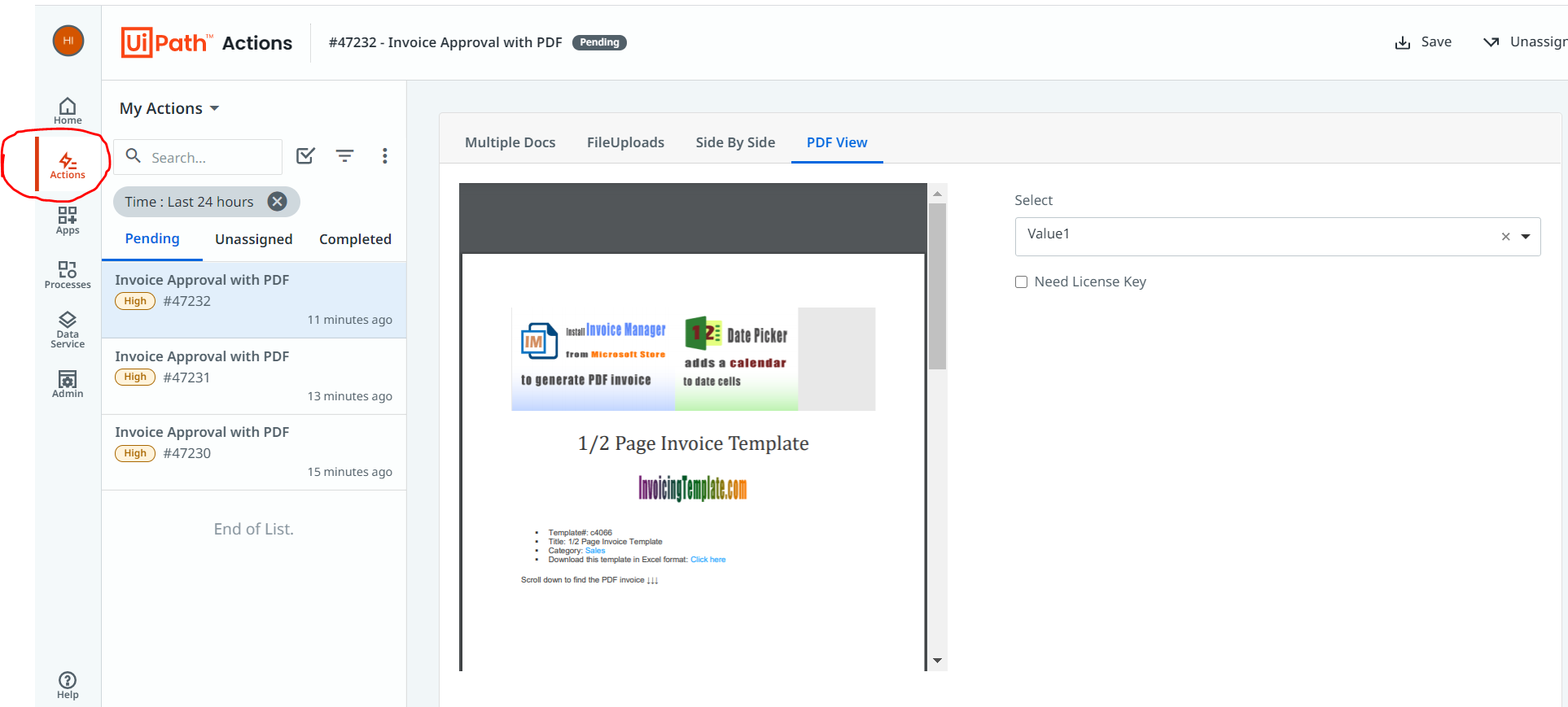
Presenting a brand-new user interface outside of Orchestrator, making it intuitive for business users to login to a dedicated Action Center application to handle actionable items that Robots are waiting on.
Action Center offering now enables business users to submit business data and trigger un-attended Robots through form-based input or file upload. A brand-new option “Processes” added for users who would like to trigger automations from web interface
Summary of features added since our last major release apart from our new user interface
-
Actions are supported in modern folders. Actions generated from a process can be routed to different folders (departments or teams) through Orchestrator Folder Path attribute in persistence activities.
-
Task Object returned from ‘Create Form Task’ now contains additional task meta-data (assigned to user, last modified users, last modified time, etc.)
-
Studio > Project settings > ‘Support persistence’ flag can be used to enable persistence activities in any process type.
-
Ability for business users to trigger un-attended processes through forms (including file upload) and track processes triggered by them
-
New Document understanding specific Action types available in Action Center application (Document validation, Document classification)
-
Additional controls in forms like storage bucket-based images, dynamic and cascaded dropdowns, content control
-
Ability to add file attachments to actions
-
PDF Viewer support in Action Forms
-
Action forms intermediate Save
-
Javascript expressions support in actions based forms for advanced conditions and validations logic
New capabilities
Let’s glance through the new capabilities added since our last preview update until now.
Document Understanding Action types are enabled in the new Actions app
Refer to documentation
Document Classification Action
Document Validation Action

Attachment support in Action Forms
Business users can now upload file(s) to an Action form (backed up storage buckets), very crucial while automating agent verification scenarios.
RPA developers can configure whether to accept single or multiple file(s) in a form field and the maximum file size supported per upload through form designer properties.

Embedding PDFs to Action forms possible now with the support for PDF viewer
PDF files can be uploaded to storage buckets and referred directly in an HTML Element control, saves effort in conversion of PDFs to images for embedding in forms.

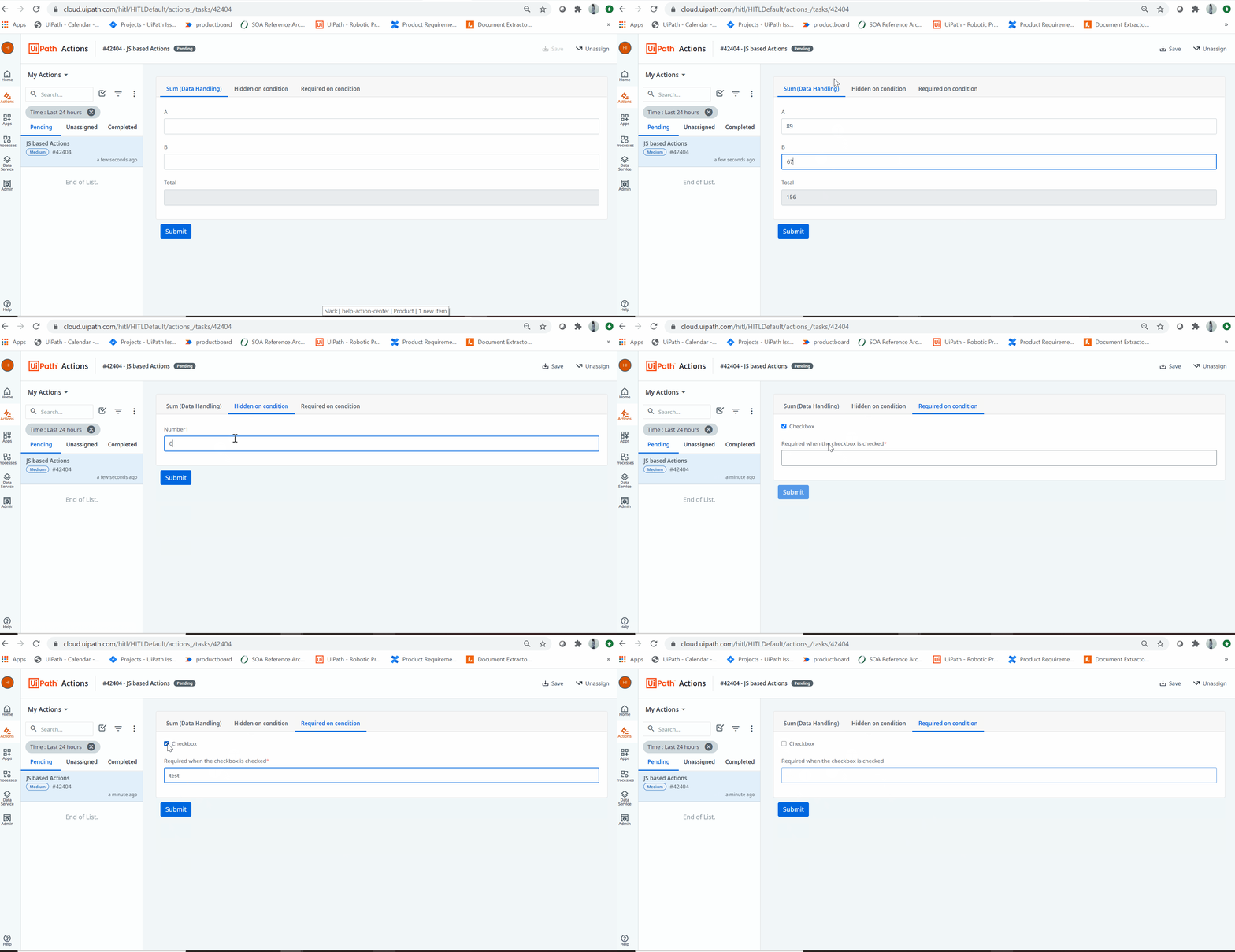
Action forms now supports basic JavaScript expressions
RPA developers can use basic JavaScript expressions in Action Forms for advanced validations and conditions. This is a safe-eval version of JavaScript, hence not exposing DOM APIs (in-turn objects like fetch, window, browser, etc are not exposed ).
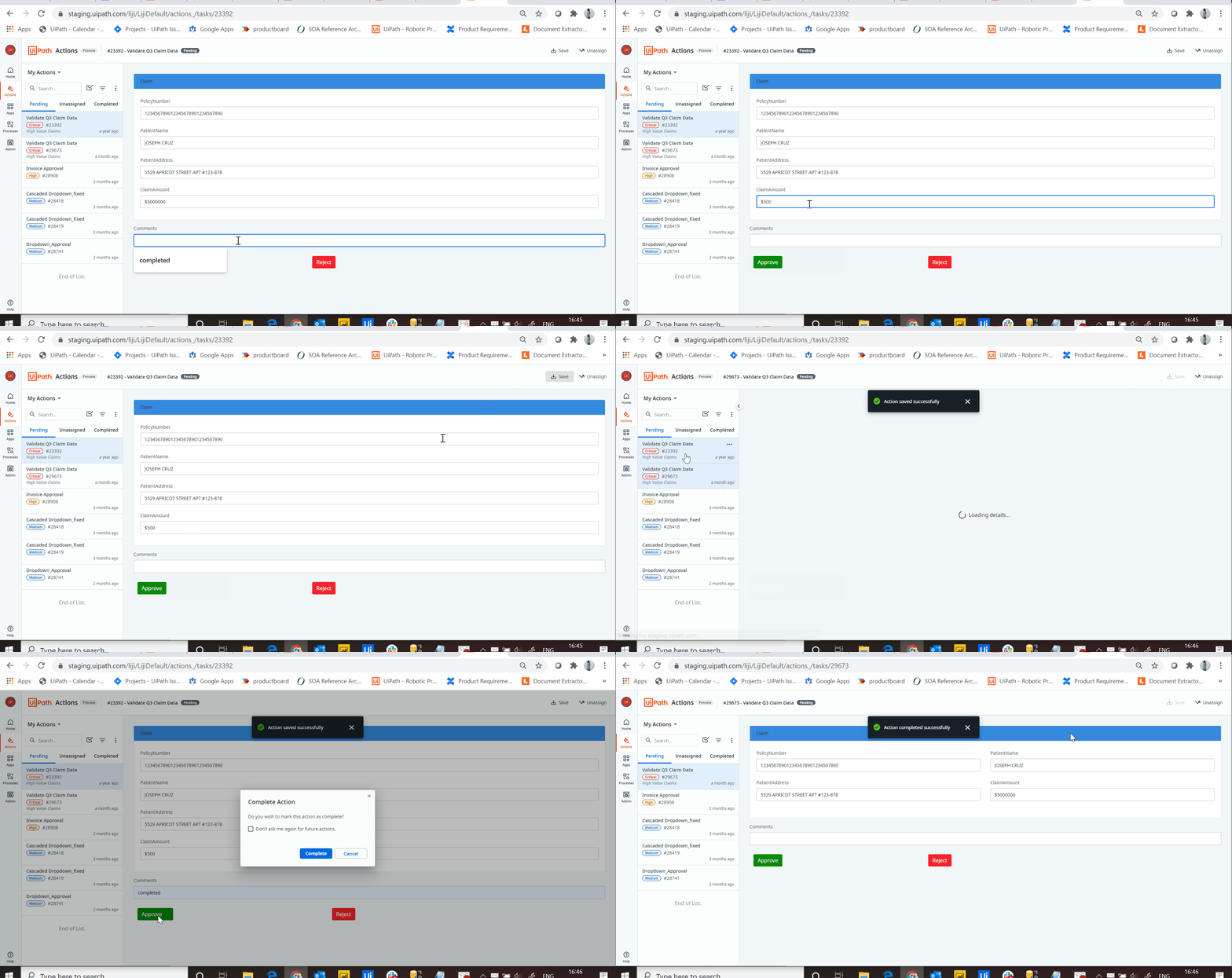
Intermediate save in Actions Forms
Business users does not have to enter data at a stretch before completing an Action
Download Actions meta-data in CSV
Enables download of Action information for the current filter applied in a CSV format

Trigger un-attended processes through file upload
Process forms in Action Center can now present file upload control and trigger processes through file upload (Queues and Jobs)

Missed our earlier posts on Action Center features?
Feature updates during the preview
Sample workflows to demonstrate new features
-
Workflow to accept attachment as part of Action Forms
Storage_Sample_actions_attachments.zip (135.8 KB)
Developer info:
- Pass argument of data type ‘
StorageUploads’ in the form data, map this fieldkey to ‘File’ component under advance controls section in the form designer - Developer can define properties to control allow upload of single or multiple files as well as min and max limit of file size that could be uploaded during design time
This workflow uses bucket name ‘ActionsTest’
- Pass argument of data type ‘
-
PDF Viewer support in Action Forms
Storage_Sample_PDF_Viewer.zip (1.4 MB)
Developer info:
- PDF to be uploaded to storage bucket using storage bucket activities (this sample workflow uses storage bucket with name ‘ActionsTest’).
- Pass the uploaded file path to form data through an attribute name with suffix _ storage (eg. Pdf_storage)
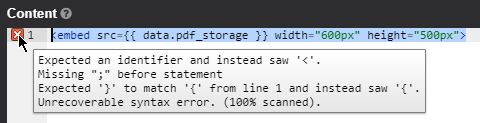
- Refer the attribute name (eg. pdf_storage ) in the HTML Element control with tag. Example <embed src={{ data.pdf_storage }} width=“600px” height=“500px”>
- Do not check ‘RefreshOnChange’ property.
Go to Edit Json, search for ‘RefreshOn’ and set value to the form data attribute “eg. pdf_storage’ and SAVE
-
Javascript expressions support in Action Forms
JS Expressions_in_Actions.zip (4.8 KB)
Developer info:
- In the property of a form element, go to Logic tab, then add ‘Advanced Logic ’ and select JavaScript for writing required JavaScript expressions for data validations and advanced conditions
- This JavaScript interpreter does not support DOM APIs, hence none of the objects like fetch, window, browser, etc are exposed.
-
Trigger un-attended process with file upload (Through Queue schema)
Relocation Expenses_Queue_File_Upload.zip (44.5 KB)
Developer info:
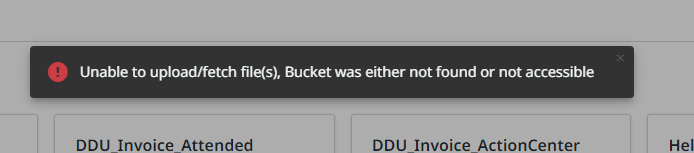
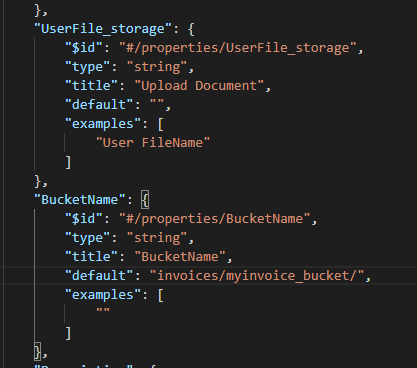
- Suffix the keyword _storage for an argument or schema property to show file upload control. There has to be mandatory parameter ‘BucketName’ to provide storage bucket where these files have to be uploaded to
-
RelocationInvoice_QueueSchema.JSONin this workflow zipRelocation Expenses_Queue_File_Uploadincludes the properties ’UserFile_storage’ & ’BucketName’ that enables to render a form with File Upload control - Provide the value for BucketName in the ‘Default Value’ of Queue schema
This workflow uses bucket name ‘ActionsTest’
Have some feedback or feature requests ? 
Do write to us here.