Step 1: Structure Your UiPath Project for Exception Handling
Use Arguments for Exceptions*: Ensure that each workflow in your project that handles exceptions has out arguments designed to capture exception messages.
Aggregate Exceptions*: In the main workflow, have a variable (e.g., a List<String>) that aggregates all the exception messages collected from the different workflows.
Step 2: Collect Exception Messages
Within Each Workflow*: Whenever an exception is caught, assign the exception message to the respective out argument.
In the Main Workflow*: After invoking each sub-workflow, collect the out argument values (exception messages) and add them to your aggregated exception messages list.
Step 3: Prepare the Data for Excel Export
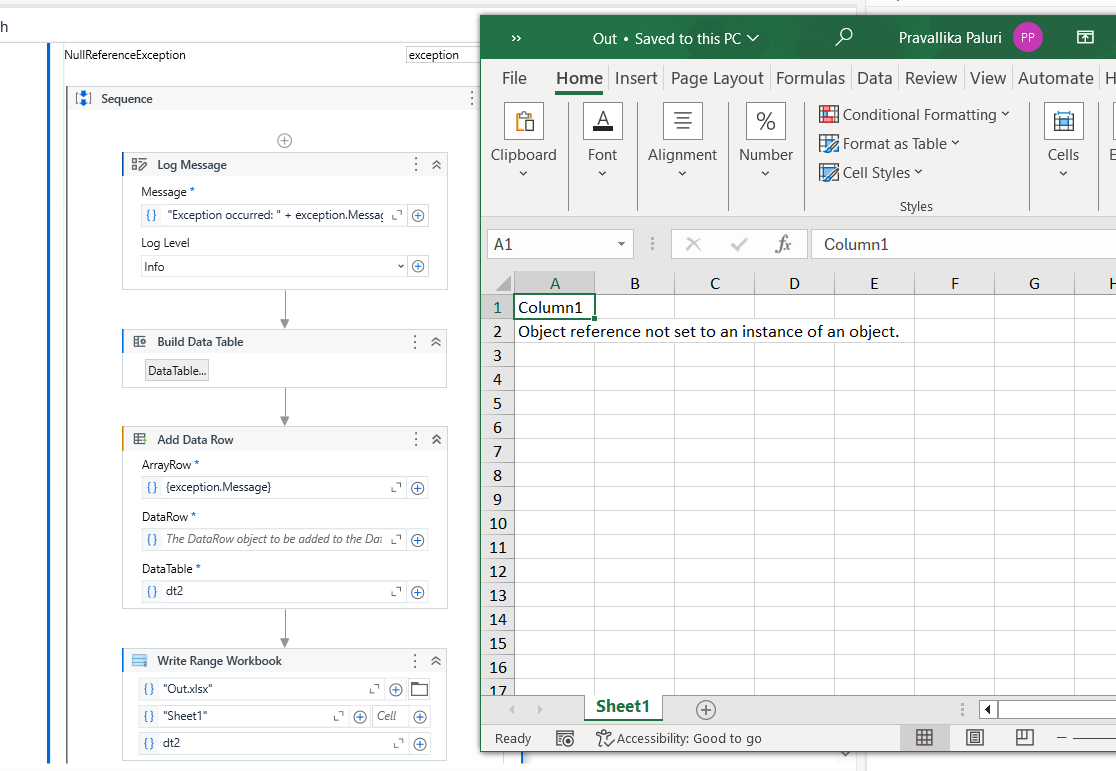
Convert to DataTable*: Before the process ends, convert your list of exception messages into a DataTable. This can be easily done by initializing a DataTable with one column (for messages) and then iterating over your list to add each message as a new row.
Step 4: Export to Excel
Write Range Activity*: Use the “Write Range” activity from the UiPath.Excel.Activities package to write your DataTable to an Excel file. Specify the file path and sheet name where you want to export the messages.
UiPath Flow:
’ Initialize your List for exceptions at the start of the Main workflow
Dim exceptionMessages As New List(Of String)
’ After each workflow call, add exception messages to the list
’ Example: exceptionMessages.Add(YourOutArgumentForExceptionMessage)
’ Convert List to DataTable before the process ends
Dim dtExceptionMessages As New DataTable
dtExceptionMessages.Columns.Add(“Exception Message”, GetType(String))
For Each message As String In exceptionMessages
Dim newRow As DataRow = dtExceptionMessages.NewRow()
newRow(“Exception Message”) = message
dtExceptionMessages.Rows.Add(newRow)
Next
’ Use Write Range activity to export the DataTable to Excel
’ Specify the Excel file path and sheet name in the Write Range properties