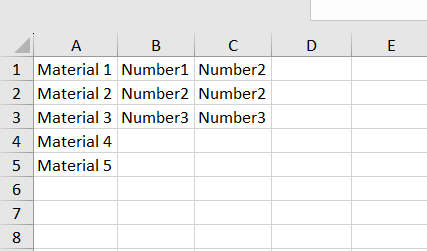
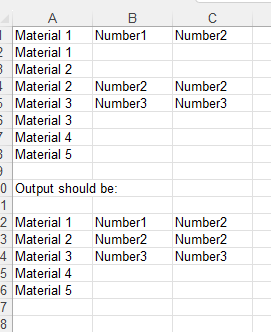
I have a problem. I have an Excel list and there are some duplicates in it. I would like to delete all duplicates but only those in which there is nothing in the last cells. (See Excel example).
Do you have any ideas?
The standard function with Remove Rows did not work. Excel.xlsx (8.9 KB)
Thanks for your message. I have tried it but unfortunately it does not recognise it as a duplicate because the other columns contain values. Only the first column is the same.
Use the Remove duplicates activity only but modify some options as below,
→ Select the Compare Individual Columns option.
→ Click on Add column and give the Name of the first column in your excel.
I have also tried but unfortunately it deletes some of the wrong duplicates, I am only allowed to delete the rows in which the value is only in the first column and nothing in the second column.
You can use a Filter Data Table activity for this. Since I am using the ‘Keep’ option, I have specified the operation as ‘is not empty’. Additionally, I have used the column index ‘1’ under the ‘Column’ parameter. You can either use the column name or index and provide as many conditions as you need.
The activity will remove the rows with empty values and filter the datatable.
Thanks for your solution. Perhaps you also have a solution if the list is not sorted like the input list. Perhaps you can query whether the 3rd column is empty for the respective duplicate and then delete it. See example: