I’m creating a robot that registers employee information from Excel into a web-based attendance management system.
I’m trying to handle the message dialog with an OK button that appears when I try to register an employee who isn’t already entered in the system, but I’ve tried various things and can’t get the workflow to run correctly.
・App status
・Element Exists + conditional branching
・Find Text + conditional branching
Which activities should I use to make this work?
I’m using Edge as my browser.
Sorry for the beginner question, but I’d appreciate your advice.
Could you explain what you mean by the process not running? It would be helpful if you could share a little more detail.
A common issue when handling browser pop-up dialogs is that the UiPath process can become stuck waiting because of the pop-up. For example, you could try setting the input mode for the action (such as a click) before the pop-up appears to HardwareEvent and see if that helps.
Thank you for your quick reply.
When the normal flow works correctly, the alert dialog handling does not run. When the alert dialog handling runs, the normal flow does not work correctly. This keeps happening over and over.
I’m also no longer sure which activity would be best to use.
I’ll try the method you suggested and post again.
Use Check App State for the alert dialog, place an OK click on the Target Appears branch, and put the normal flow on the Otherwise branch.
Thank you.
I tried the method you suggested.
The flow on the left, for when there are no matching people, ran, but the flow on the right, for when there is a matching person, does not.
It gets as far as entering the ID and clicking Search.
The table in the flow at the bottom right appears, and then it stops. I want to click a specific row in this table to proceed to the next screen, but…
The message is displayed as follows, so it seems the process isn’t going down the path on the right.
I apologize, but I would appreciate it if you could advise me on how to resolve this.
Click ‘OK (1)’: The user interface (UI) element for this action could not be found.
Possible solutions
• Make sure the application is open at runtime and the UI element is visible on the screen
• Edit the target of the UI activity and use the validation feature to debug the issue
• The properties may have changed, so re-indicate the element if necessary
• Use the [Check App State] activity before performing the action to check the application’s state
• Increase the [Wait for Ready] value to allow the application to finish rendering completely and become responsive
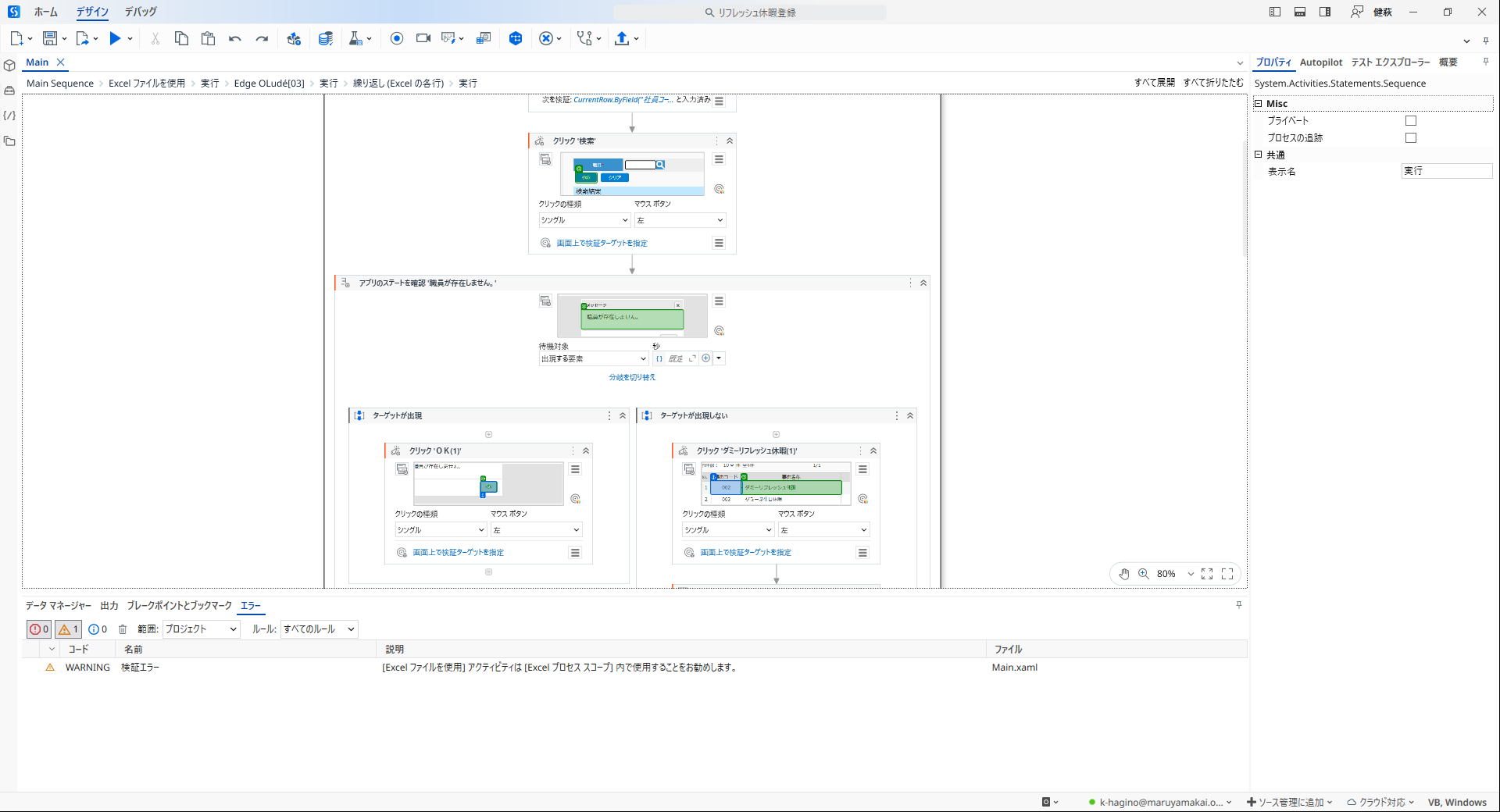
Hello,
First, if this message appears only in an error scenario, and the normal screen contains elements that are not displayed in the error scenario, it would be better to check the elements that are expected to appear in the normal scenario first. (Checking that something is present is more efficient in terms of throughput than also checking that it is absent.)
Regarding the issue above, could you share how you have specified the target for the app state check? In particular, does the selector include the content of the message in question? If it does, this may be a visibility issue, so you could try adjusting the visibility property.
Thank you very much.
After changing the visibility check to “Fully visible,” the process ran successfully.
That was a huge help!