I have excel data here i want to remove a row with name pay from the excel header should not be removed i want only data with paid rows data header should be remain as it is
PLease do the needful
Input_Data.xlsx (8.1 KB)
VBA Code:
VBA Code.txt (568 Bytes)
Sub KeepPaid()
    Dim lRow As Long, Rng As Range
    With Sheets(1)
    	 lRow = .Range("A" & .Rows.Count).End(xlUp).Row
    End With
    ThisWorkbook.Sheets(1).Activate
    Range("A1:E1").Select
    Selection.AutoFilter
    ActiveSheet.Range("$A$1:$E$" & lRow).AutoFilter Field:=1, Criteria1:="<>Paid"
    Set Rng = Range("A1:E" & lRow).SpecialCells(xlCellTypeVisible)
    If Rng.Cells.Count > 1 Then
        Range("A1:E" & lRow).Offset(1, 0).SpecialCells(xlCellTypeVisible).EntireRow.Delete
    Else

    End If
    Selection.AutoFilter
End Sub

Output:

Thanks,
Ashok 
Hi there,
you can use a read range to read your Excel data into a data table, make sure to enable the add headers like below higlighted.

Use the filter datatable activity, see example below:

and then use right range activity to write back the filtered datatable into excel
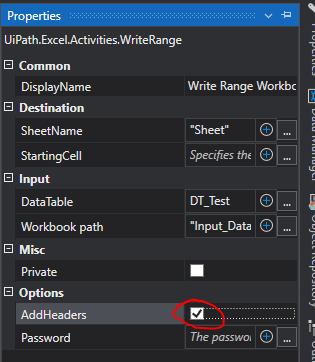
here is your output:

Hello @T_Y_Raju ,
you can achieve your goal using Linq in one assign activity

in_DT.AsEnumerable().Where(Function(row) row("Pay").ToString() <> "Pay").CopyToDataTable()
Hope it will help you
Regards,
Dheerandra Vishwakarma
- Use excel file
- Filter excel activity and filter required column with required value(Pay)
- Delete rows activity with option as visible rows/ hidden rows based on filter and the rows would be deleted
No need to read the data or use any vba
a simple two activities in excel will do the job
cheers
I believe you want to remove the rows with the header pay. Try this method
-
Use Read Range activity to read the excel data into a datatable say dt_paidInfo
-
Then use filter datatable activity to filter out rows with value pay


- Write the resulting datatable into an excel

See attached workflow. Please mark this as solution if you find it helpful @T_Y_Raju
Main.xaml (7.7 KB)