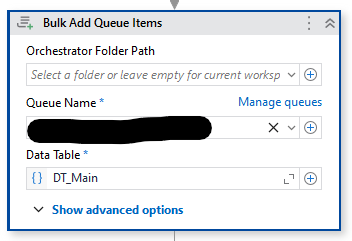
Here is one way to read an Excel file and group rows together into one queue item.
Use your typical methods to read the Excel file into a datatable.
In this example we are working with an Excel file that contains CSV definitions with one row per CSV column, so we need to group them to have one row for the mapping definition and a column that contains JSON for the field definitions. Here is example data:

We need to group by the combination of BUSINESS_NAME and MAPPING_NAME because the same MAPPING_NAME could be used for multiple BUSINESS_NAMEs.
The FIELDNAME, FIELDNUMBER, etc columns need to be converted into JSON and stored in the datatable so the first step is to create a column in the datatable:
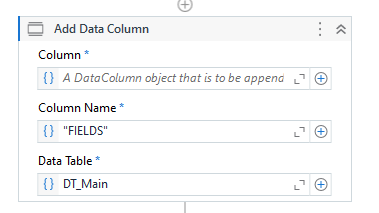
Then loop through the datatable:
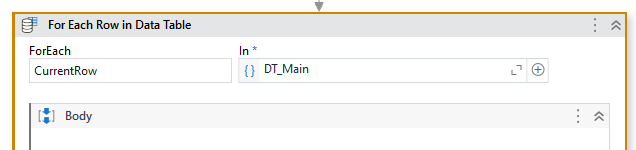
Now we are in the loop and for the CurrentRow of data from DT_Main will filter into a new datatable DT_Fields to get all matching rows for the current BUSINESS_ID/MAPPING_NAME into a separate datatable:
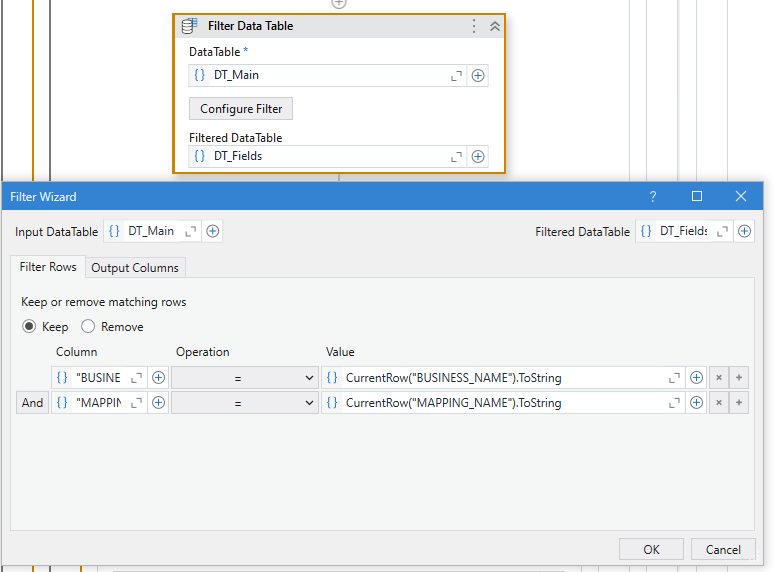
Now we have a separate datatable for the first group of data, so convert that to JSON and add it to the column that was created earlier:

Newtonsoft.Json.JsonConvert.SerializeObject(DT_Fields)
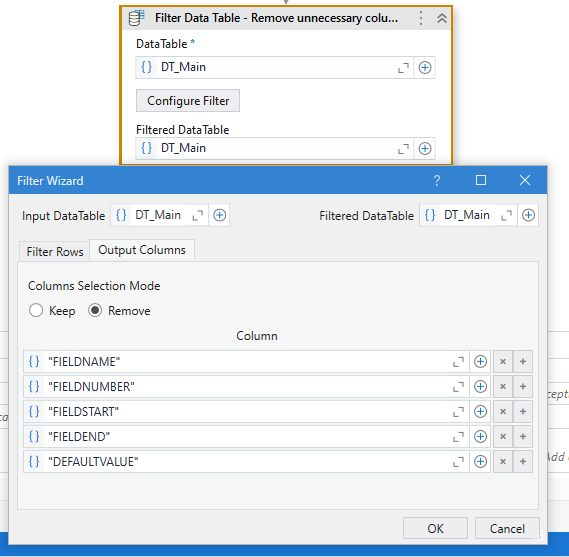
Once the For Each Row completes, every row in the datatable has the FIELDNAME, FIELDNUMBER, etc columns stored as JSON in the FIELDS column, so we remove those columns from DT_Main:
Then remove duplicates from the datatable so we have only one row for each BUSINESS_NAME/MAPPING_NAME:
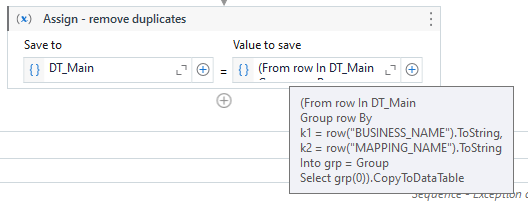
(From row In DT_Main
Group row By
k1 = row("BUSINESS_NAME").ToString,
k2 = row("MAPPING_NAME").ToString
Into grp = Group
Select grp(0)).CopyToDataTable
Now that the data is properly grouped in the datatable, use Bulk Add Queue Items to add them to the queue: