I have an excel sheet that is created once a week from a reporting system. It will always look like below screenshot (Headers start on cell B6 and the row count will be different each time. The columns will always be the same.).
What I need to do is grab only the information in the table, including the headers and copy it to another worksheet. The last row will always contain the “grand totals”. I do not need the title “Sales Reports” nor the “selection criteria” row. How would I get only the data and the headers?
In read range activity you can mention range. Give “B6” Range in read range and the excel data will be copied to a datatable. later you can write this datatable to any other sheet or workbook using write range activity.
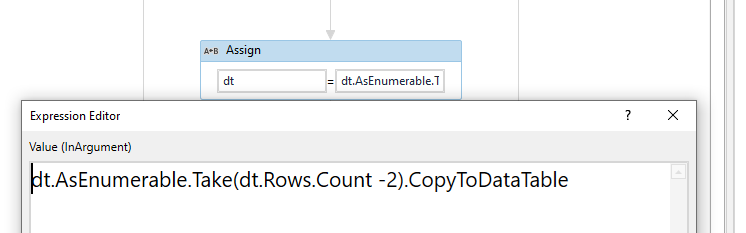
Thank you, I tried this but when I write the output to excel, it includes the last row with “selection criteria” which I do not want. It is also not preserving the format of some columns even after clicking “preserve format”?
@balupad14 this activity set is great! Do you know how I could align a column left or right? I did not see this activity available for alignment. Thanks!
@balupad14 is this activity set compatible with 2019+ versions of Studio? It was working for me fine, but now seems to only work in debug mode, rather than normally in Studio? I’m on 2019.10.4 Thanks!
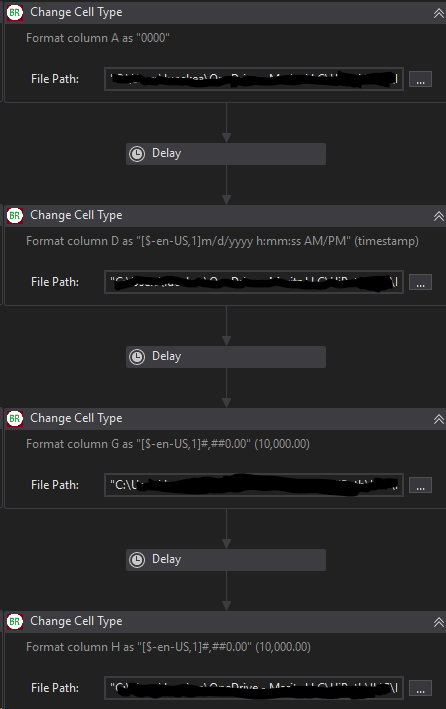
@balupad14 If I’m using your “Change Cell Type” activity multiple times, should I include a long delay after each? I notice it’s only performing the activities in debug mode on slow step, but not when I actually run the process. No errors, the robot just stays running but does nothing.
Hard to share because it works when I only have the “change cell type” activities…but when I have activities before it, it does not work, and the robot just freezes but shows no errors.