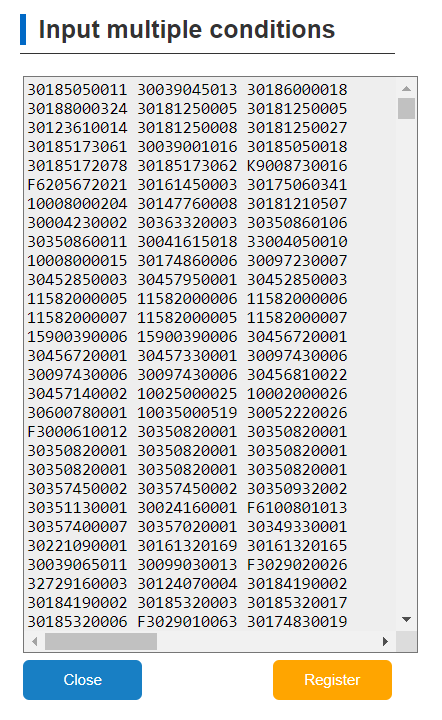
Each value need coma separation,
Example: “301895011” + “,” + “31000999” + “,” + “36788920” …etc
The reason why i need this is because everyday I have about 7 - 8000 lines of our product code.
Need to utilize an automation to search for these product codes.
*Edit: I also need to use the latest excel workbook to copy the SKU codes from.
so basically you want to copy the project codes in the excel file …Seperate it with commas and update in web textbox right? All the project codes will be in a single column.Can you share a sample excel file if possible?
Here attached is the sample excel
I need to copy all data in column A and paste into the textbox or use “type into” application
But I do not know how to separate each value with “,”
After Assign activity inside for each
use log message add the expression I have given and check whether you getting as you required then put it in text box
First use read range and get the datatable
then use below linq query
var concatenatedValues = string.Join(“,”, dt.AsEnumerable().Select(row => row.Field(columnName)));
How can I make sure the excel file being read is the latest excel?
I am required to read today’s excel worksheet in order to copy the data.
Can you also show me a snippet or screenshot on where you put the code below? Apologies, but i am not familiar with linq query “var concatenatedValues = string.Join(“,”, dt.AsEnumerable().Select(row => row.Field(columnName)));”
use assign activity
Latest file=
Directory.GetFiles(“YourDirectoryPath”)
.OrderByDescending(Function(f) New FileInfo(f).LastWriteTime)
.First()
This will give you the latest file in the directory
Use Assign activity
Concatenated values =String.Join(“;”,dt.AsEnumerable().Select(Function(a) a.Field(of string)(“yourcolumnname”)).ToArray())