how can i change the cell alignment to left r right in excel using UiPath ?
Hi @poojaskyrathore ,
Can you share a sample excel file and how you need the output?
Hi @poojaskyrathore ,
Use the “Invoke VBA” activity to run a VBA macro that changes the alignment of the selected cells. For example, if you want to align the cells to the left, you can use the following VBA code:
vb
Copy code
Sub LeftAlign()
Selection.HorizontalAlignment = xlLeft
End Sub
If you want to align the cells to the right, you can use the following VBA code:
vb
Copy code
Sub RightAlign()
Selection.HorizontalAlignment = xlRight
End Sub
Note that "Selection" refers to the currently selected range of cells.
Save the VBA code as a string variable, and pass it as an argument to the “Invoke VBA” activity.
Close the Excel file using the “Excel Application Scope” activity.
Thanks,
Hi @poojaskyrathore ,
Is it possible for you to use the Modern Design Experience, then you could try the Format Cells Activity.

how can i get format cell activity ? i mean what package should i install to get format cell activity ?
As mentioned already, it will be available once the Modern Design Experience is enabled. You can enable this feature from the Project Settings Panel.
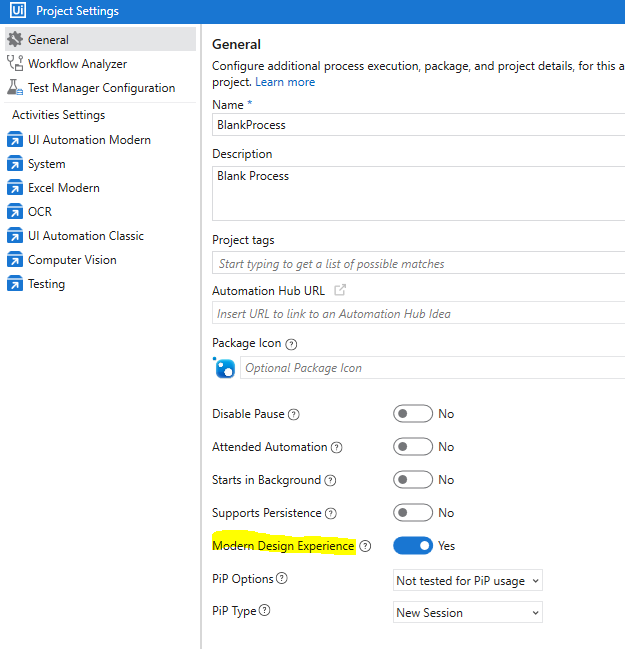
If you are still not able to get the activity, let us know the version of UiPath Studio that is being used.
hi ,
where do i give cell here ? as in i need to align only b2 cell … how do i put that in vb?
Use the “Excel Application Scope” activity to open the Excel file you want to work with.
Use the “Select Range” activity to select the range of cells that you want to change the alignment for.


